Mastering Odoo Automation Rules for Better Workflows
As businesses scale, manual processes often lead to delays, inconsistencies, and increased workload across tasks like record updates, team coordination, and transaction follow-ups.
Automation helps maintain efficiency and control by reducing repetitive manual work.
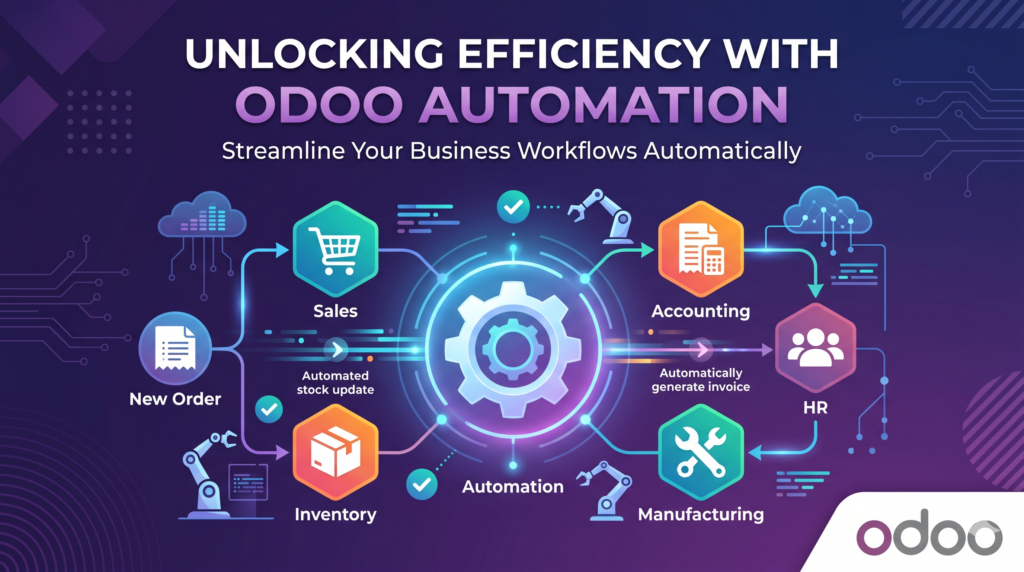
Odoo automation rules allow workflows to run in the background, connecting different functions without manual input.
What Odoo Automation Rules Are
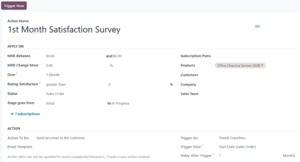
Automation rules in Odoo are logic-based workflows that automatically execute actions when defined triggers and conditions are met.
Rather than asking users to manually update every step, Odoo can respond in real time to changes in records, statuses, dates, approvals, or thresholds.
For example, when a quotation is confirmed, Odoo can automatically:
- Create a delivery order
- Notify finance for invoicing
- Assign follow-up tasks
- Update pipeline stages
- Trigger internal alerts
Because Odoo operates in a connected environment, actions in one module can affect another without needing duplicate data entry.
How Odoo Executes and Evaluates Automation Rules
Odoo automation rules are evaluated in a structured flow. When an event occurs, the system checks the trigger, validates conditions, and then executes defined actions only if all criteria are met.
Core Components of an Automation Rule
Every automation rule in Odoo is built around four main elements:
Model
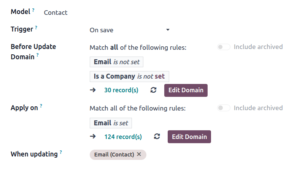
Defines the business object where the automation is applied, such as Contacts, Sales Orders, Invoices, or Inventory items. This determines which data the rule will act on.
Trigger
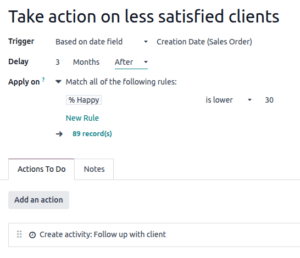
The event that initiates the workflow. Common triggers include:
- Record created
- Record updated
- Status or stage change
- Scheduled date reached
- Field value modified
- Email events (incoming/outgoing messages)
- External triggers (webhooks / integrations)
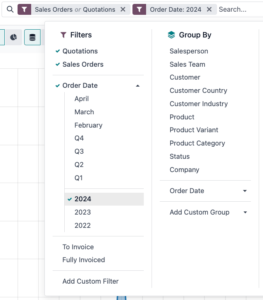
Conditions (Domain Filtering)
Conditions determine whether a record qualifies for automation.
Odoo evaluates conditions to ensure only relevant records trigger actions, such as:
- Opportunity value above a threshold
- Invoice overdue by a specific number of days
- Stock below minimum level
- Contract nearing expiry
This filtering prevents unnecessary or incorrect automation execution.
Actions
Actions are the tasks executed when both the trigger and conditions are satisfied. These may include:
- Sending notifications or emails
- Updating record fields
- Assigning users or teams
- Creating activities or tasks
- Moving workflow stages
Execution Logic
When an automation event occurs, Odoo processes it in the following order:
- A trigger is activated
- The system evaluates the record against defined conditions
- If conditions are met, actions are executed
- If conditions are not met, the rule is ignored
For time-based triggers, execution depends on scheduled system checks, meaning actions only run when the defined timing condition is reached.
Key takeaway
Odoo automation does not run immediately on every event. It only executes when triggers, conditions, and timing rules align, ensuring efficient and controlled workflow automation.
Choosing the Right Actions When Rules Are Triggered
Once a rule is triggered and conditions are met, Odoo executes the assigned actions. The main action types include:
- Update Record: Modifies a field statically, via computation, or using Odoo 19’s new AI-assisted prompts.
- Create Record: Automatically generates a new entry, like a follow-up task.
- Create Activity: Schedules a call or meeting for a specific user.
- Execute Python Code: Runs custom scripts for highly complex logic.
- Send Webhook Notification: Pushes data to an external application.
When setting up actions, always group them logically and order them correctly. Take advantage of AI-assisted updates to dynamically populate fields based on contextual data.
Real-World Use Cases for Different Departments
Sales & CRM
Sales teams often lose time managing leads and follow-ups manually. Automation helps assign leads based on territory or expertise, trigger follow-up reminders for aging quotations, and update deal stages automatically based on customer activity. This keeps pipelines active and reduces missed opportunities.
Finance & Accounting
Manual financial processes increase the risk of errors and delays. Automation supports recurring invoice generation, streamlines vendor bill capture using OCR, and simplifies bank reconciliation. This improves accuracy and reduces time spent on routine accounting tasks.
Inventory & Manufacturing
Stock shortages and delayed production often come from poor visibility. Automation enables real-time reorder rules, triggers purchase orders when inventory drops, and generates work orders based on confirmed sales demand.
This keeps operations aligned and prevents disruptions. For a deeper look at how automation supports production workflows in manufacturing, see how Odoo automation is applied in real-world operations.
Human Resources
HR teams often manage repetitive administrative tasks across hiring and employee lifecycle. Automation can trigger onboarding workflows when candidates are hired, manage leave approvals with notifications, and send reminders for contract renewals or performance reviews. This ensures consistency and reduces manual coordination.
Creating Your First Automation Rule Step by Step
Building an automation rule in Odoo is straightforward. Follow these steps:
- Enable Developer Mode in Odoo settings
- Open Odoo Studio and go to the Automations menu
- Click New to create a rule
- Select a Trigger (e.g. On Creation)
- Define an Action (e.g. Update Record)
Always use proper naming conventions and document the purpose of the rule in the Notes tab. It is crucial to test your rules in a safe staging environment before pushing them live to ensure they behave exactly as expected.
Practical Automation Recipes for Common Scenarios
To make automation rules easier to apply, these examples show how common business tasks are translated into Trigger → Condition → Action logic.
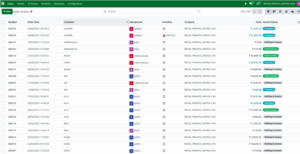
Recipe 1: Follow-Up Activity After Quotation
Sales teams often forget to follow up on quotations, especially when dealing with high volumes. This rule ensures every quotation is followed up consistently.
- Trigger: Record updated (Stage = Quotation Sent)
- Condition: Quotation not yet confirmed
- Action: Create activity
- Type: Call
- Due: 3 days
- Assigned to: Salesperson
What this does:
Automatically creates a follow-up task whenever a quotation is sent, reducing missed opportunities.
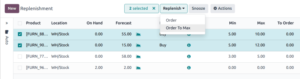
Recipe 2: Automatic Stock Replenishment
Inventory issues often occur when stock levels are checked manually. This rule ensures replenishment happens before stock runs out.
- Trigger: Timing condition (Daily scheduled check)
- Condition: Stock level below minimum threshold
- Action: Create record (Draft purchase order for primary vendor)
What this does:
Continuously monitors stock levels and generates purchase orders when inventory drops too low.
Safety and Testing
Always test automation rules in a staging or sandbox environment before deploying to production. Disable external communications during testing and validate rules using individual records first to prevent unintended bulk actions.
Implementation Strategy and Governance
Preparation and Workflow Analysis
Before building automation rules, review and document existing workflows. Identify manual steps and inefficiencies before automation is introduced. The goal is to improve processes first, not replicate broken ones. Define measurable outcomes such as reduced processing time or faster response cycles.
Phased Rollout
Start with simple, high-impact automation such as lead assignment or invoicing. Once stable, expand gradually to other departments. This reduces risk and improves adoption.
Governance and Documentation
Maintain clear naming conventions and document each rule with its purpose, owner, and update history. This ensures long-term maintainability and reduces confusion when scaling automation across teams.
Technical Best Practices
Prefer native no-code automation features where possible to ensure upgrade stability. Organise rules logically and monitor for overlapping triggers or recursive executions that could impact performance.
For businesses that need help designing or implementing Odoo automation workflows, working with an experienced Odoo implementation partner can ensure proper configuration and scalability.
How Odoo Automation Boosts Efficiency and Scalability
Automation rules in Odoo reduce manual intervention across key business workflows, improving both speed and operational consistency.
By automating repetitive processes such as approvals, record updates, and notifications, businesses can:
- Reduce processing time across departments
- Minimise human errors in data handling
- Standardise workflow execution across teams
More importantly, automation supports scalable operations. As transaction volumes increase, workflows continue to run consistently without requiring proportional increases in headcount. This is particularly relevant for growing teams managing sales pipelines, inventory movements, and financial processes.
With Odoo 19’s expanded low-code capabilities and AI-assisted features, businesses can further refine automation logic with less technical effort, making workflow optimisation more accessible across departments. Learn more about Odoo 19 AI features and automation enhancements.